Rob Weis Garren Wood    
Displacement Map
Home
Portfolio
Contact Us
Services
Wallpaper
Tutorials
Stock Photography
Resources
Webmail


Latest News:

»8.1.03
Wallpaper section is now up! More wallpapers coming soon!

»7.4.03
The tutorials section has been transferred and updated.


Step #1: Channel building

Now that we have a texture all set, we're ready to start making the displacement map.

Create a new channel with your basic shape. I chose the letter "R" as an example. You may use an interface shape, or a letter, or whatever you'd like!

Heres what my channel looks like.


Step #2: The Map

Head back to your texture and create a new layer above your stretched texture.

De-select any selections you may have (CTRL-D) and fill the entire layer with 50% grey. Edit>Fill>50% Grey

All areas that are grey, will not be affected by the displacement map. Areas of black will be displaced.


Grab a selection of your channel you created in step #1.
(Ctrl-Click) on the channel.

Center Stroke your selection by about 10 - 15 pixels with solid black. Experiment with this since it affects the displacement the most.

Deselect your selection.

Apply a Gaussian Blur to the entire layer.
Blur>Gaussian Blur > 6.0
should be enough, experienment with this.

Your image should now look similar to mine as shown on the left.

This is your displacement map! Now, we need to save this so we can load it into our filter for the next step.
Save the image in a location you'll remember with a name like "Displacement.psd".
(Save it as a photoshop file, PSD)


Step #3: Time for the magic

Turn off the visibility on your grey displacement map layer you just made by clicking on the "eye" next to the layer.


Click on your texture layer to make it the active layer.

Apply the displacement filter.
Distort < Displace
Set the Horizontal scale and Vertical scale both to 80%. Leave the other settings at, "stretch to fit" and "repeat edge pixels", which should be the default settings.
Click Ok. *Experiment with these settings for subtle changes, I've found the 80%'s to be the best*

After you hit OK, it'll prompt you for your displacement map, locate your displacement map you saved in step #2 and click Open.

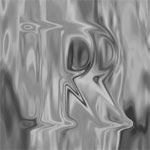
Heres the result! You should see your shape warped smoothly into your texture.


Step #4: Extracting the goods!

Now, grab a selection of your shape by ctrl-clicking your channel, then click back on the layer texture thats been warped to make it the active layer. We want to remove everything that isn't part of our channel. Do a Select>inverse>delete to clear the excess texture.

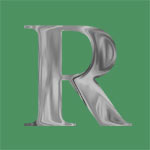
You've now completed the a displacement map! Now, you can apply a bevel, a dropshadow, and maybe some lighting effects to acquire the right color.

Quite honestly, the displacement map takes quite a lot of experimentation to get an effect that really suits the project you're working on. But, after spending some extra time, its well worth the effect.

Below are a few more examples of the "R". Click them for full sized pictures


Feel free to email me if you're having any problems with this tutorial.
I understand that it gets complicated, and that I too am learning. I'd be
glad to help you out if you're really stuck! Also, I'm interested in seeing the restults of the tutorial. Send me a jpg or gif if you use the tutorial.

Have fun! -Rob


Copyright © 2003 RGBQuest.com | Contact RGBQuest